
1. Password History & Expiration
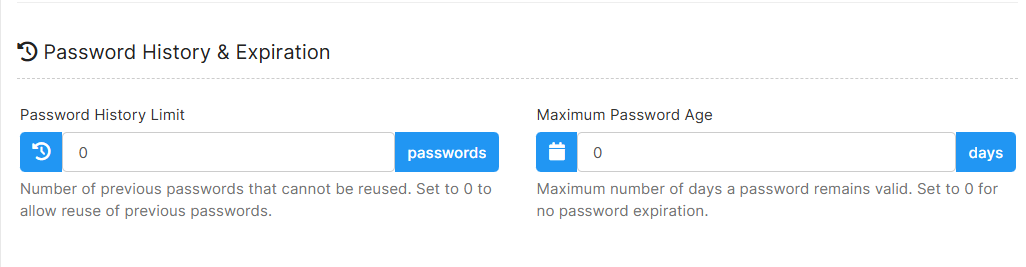
Password History Limit
- This is to set the number of previous passwords that cannot be reused by the users.
- For example, if the password history limit is 1, the users can reuse previous password as the sample below:
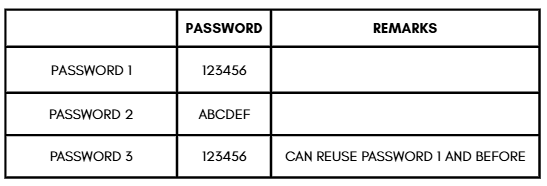
- If you want to allow reuse of previous passwords, you can set to 0 passwords.
Maximum Password Age
- This is to set when the password will expire and the users will need to update their password according to the duration.
- For example, if the duration is set to 30 days, the users need to update their password every 30 days.
- If you don't need the password expiry, you can set to 0 days.
2. Login Security
- If you don't want to apply any lockout for the users, you can just untick enable account lockout and then click save.
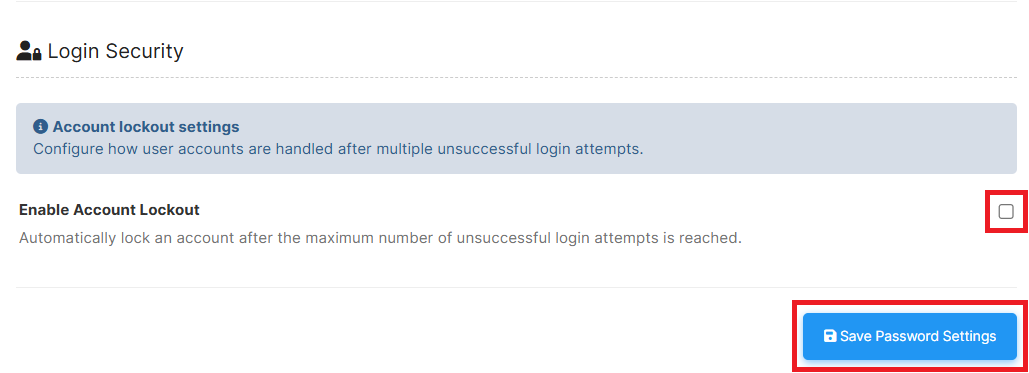
- If tick enable account lockout, user's account will be automatically locked after multiple unsuccessful logins.
- If you want to apply the lockout, you can just tick enable account lockout and then click save.
- Next is the detailed explanation on the login security:
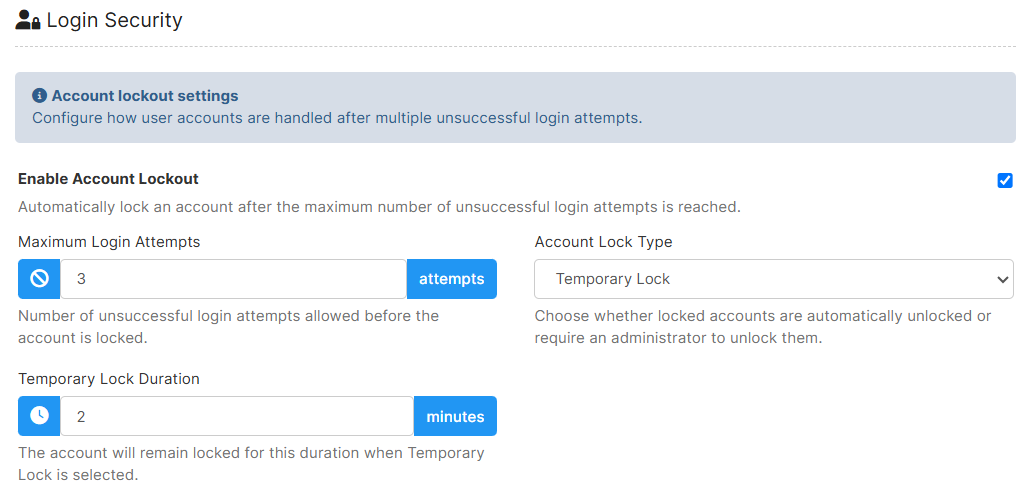
Maximum Login Attempts
- This is to set how many attempts a user can try to login before their account get locked by the system.
- For example, if the maximum attempts is 3, the users can attempt to log in for three times and at the fourth attempt, their account will be locked.
Account Lock Type
- There is two types of account lock which is Temporary Lock and Administrator Unlock Required
- Temporary Lock: The user’s account will be locked for a set period after entering an incorrect email and/or password. They can try logging in again once the lock period ends.
- Administrator Unlock Required: The user’s account will be locked after entering an incorrect email and/or password. They must contact the client's administrator to unlock their account before they can log in again.
Temporary Lock Duration
- This is only applicable for Temporary Lock type.
- This is to set the duration of the locked account remains locked.
- After the duration has passed, the users can try to login again.
Admin Lock Required : How to Unlock Locked Account
- This is only applicable for Admin Lock Required type.
- This is the steps to unlock a locked account:
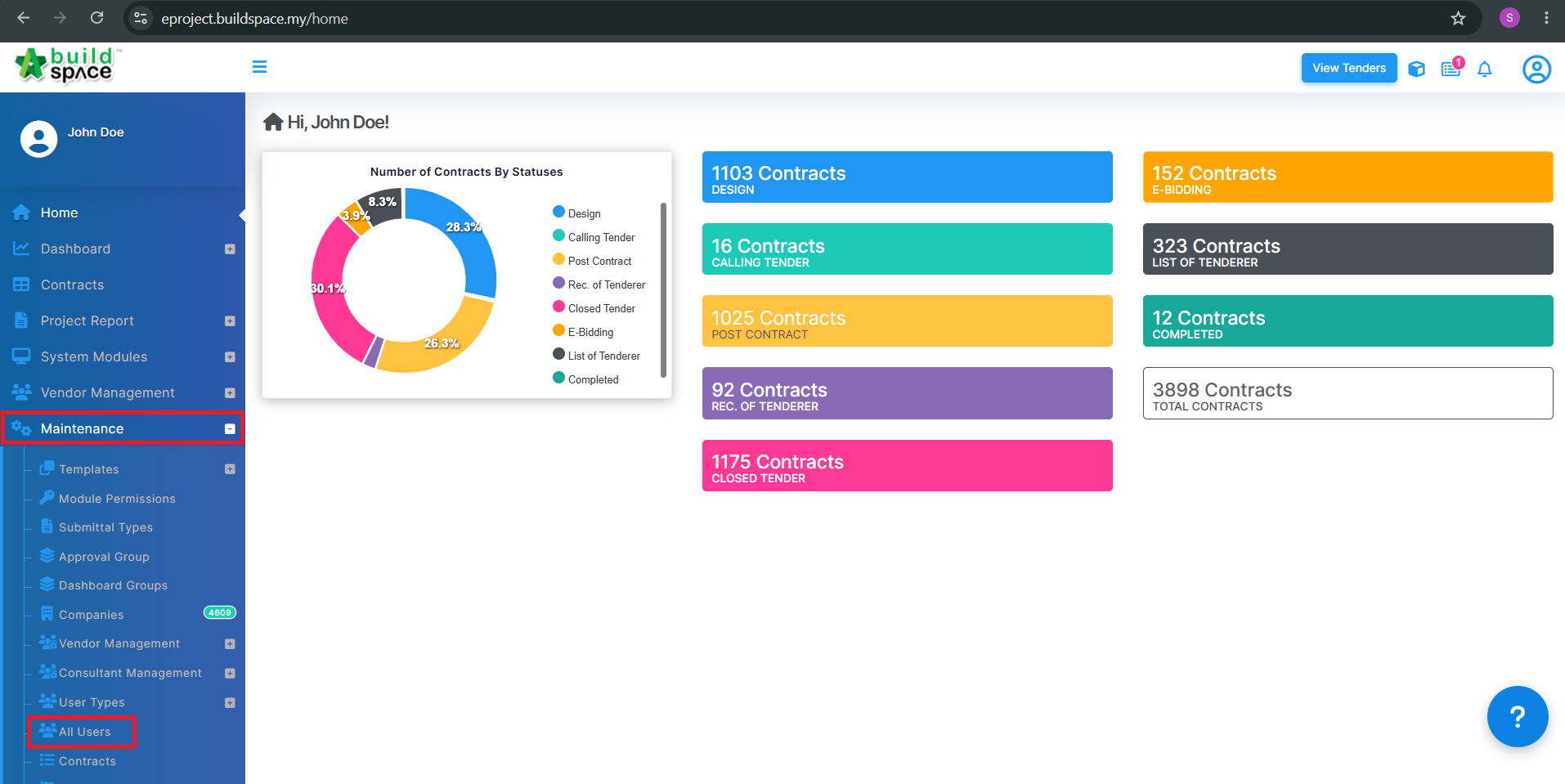
- Login as the Super Admin
- Go to Maintenance > All Users
- Search for the user account
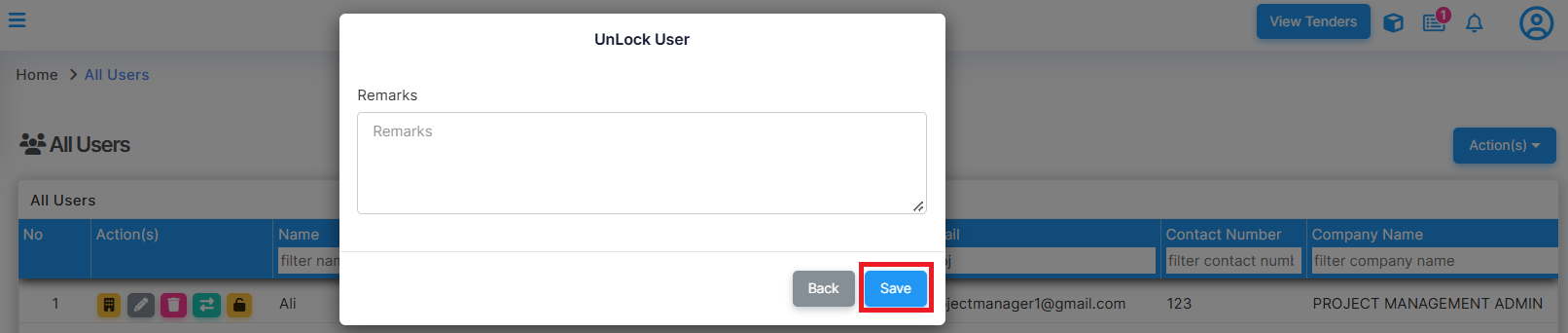
- Click on the Lock button, enter remarks and click save.

- The user can try to login again